Folders and File Formats
Core concept in plain language
The central idea is that folders distinguish containers from files; extensions indicate typical formats but do not guarantee content. In practical terms, A folder is a named container;
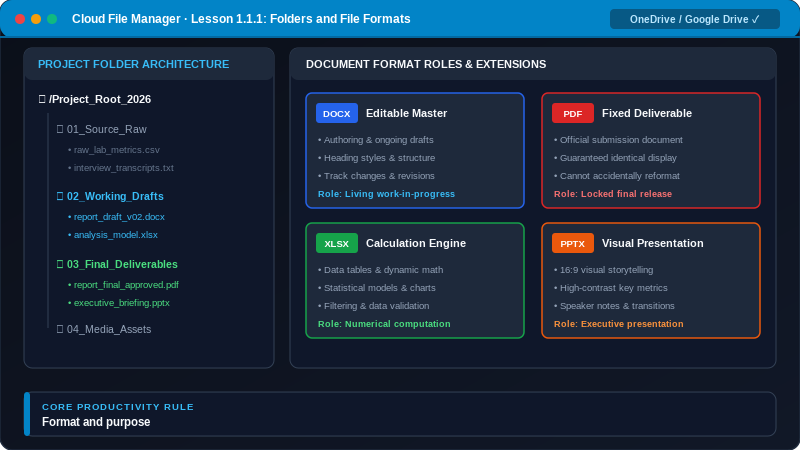
- `.docx` — Editable Word Master (drafting & updates) - `.pdf` — Fixed Layout PDF (viewing & submission; looks identical on all devices) - `.xlsx` — Excel Spreadsheet (tables, formulas, calculations) - `.pptx` — PowerPoint Presentation (slide decks & presentations) - `.png / .jpg` — Visual diagrams and photos . Notice that an interface label and the actual outcome are not always the same thing: a file may look correct but contain the wrong structure, a sharing link may open but expose too much access, or a document may print differently than it appears on your screen. The reliable habit is to identify the object, choose the right operation, observe the result, and verify it independently. Think of this as a mini scientific experiment: change one thing, look for a specific effect, and record whether your prediction was correct. Your goal is not speed on the first attempt; your goal is accuracy that can later become speed.
Guided workflow
Follow this workflow: Organize by project > source / drafts / final, and choose formats according to the next user.
1. Step 1 (Setup): create a harmless practice copy rather than modifying a real graded assignment. 2. Step 2 (Plan): decide the outcome before selecting a menu. 3. Step 3 (Action): make the smallest change that achieves it. 4. Step 4 (Verify): inspect the visible result and any hidden consequence, such as permissions, structure or export quality. 5. Step 5 (Document): save or document the outcome so you can undo an error. A useful classroom technique is to work in pairs: one student gives precise instructions and the other performs them without guessing. When the instructions fail, revise the instructions rather than blaming the person following them.
Try it in the actual tool
Open a practice document or sample file in the appropriate desktop or web application. Locate the relevant command, but do not assume every edition has identical labels. If the menu differs, use the application help search or the official reference linked below. Make one deliberate change connected to File extension. Write down the before state, the action, the after state and the evidence that it worked. Repeat with a second example that looks similar but requires a different choice. If you are using a school-managed account, some features may be disabled by the administrator; record the limitation and use a local practice file rather than attempting to bypass restrictions.
Core Productivity Rule · short trick
Folders and File Formats
Keep this rule on a sticky note: **Format and purpose**. The fastest shortcut is usually a thinking shortcut: name the goal, choose the tool, perform one operation and verify. Learn keyboard navigation such as Tab, Shift+Tab, Enter, Ctrl+Z or the platform equivalent, but do not assume a shortcut has the same meaning in every app. Ask three questions before finishing: Can another person understand the result? Can I reverse a mistake? Can I prove the outcome is correct? When you answer all three, you have moved from casual clicking to a repeatable workflow.
Troubleshooting and accessibility
If the expected result does not appear, check the selected object, active account, edit permission, file format and current view. A command may be unavailable because the file is read-only, the cursor is in the wrong place, or the feature is different on web and desktop. Avoid making ten random changes to fix one issue. Undo, return to the last known-good state, and test a single hypothesis. Accessibility is part of correctness: use meaningful names, sufficient contrast, semantic structure where available, and text alternatives for informative images. Test keyboard operation and do not rely on color alone to communicate status.
Independent challenge and reflection
Your mission is to improve a fresh sample that contains a deliberate problem related to folders and file formats. Write a one-sentence diagnosis, list at least three possible actions, and select the safest one. Perform it, take a before/after note, and explain how you know it worked. Then imagine that your classmate uses a different device or application edition. Which parts of your instructions are universal and which depend on a particular menu? Finally, teach the idea to a younger student using a non-computer analogy. If you can explain the concept without naming a button, you probably understand the underlying skill.
Visual learning and concept map

Mini mind map: Folders and File Formats → Why? (A science-fair team has photos, notes, data, and a final report scattered in Downloads) → Concept (File extension) → Rule (Format and purpose) → Verify → Share responsibly.
| Remember | Avoid | Prove |
|---|---|---|
| Format and purpose | A .pdf can be viewed but should not replace an editable master. | Before/after evidence and a peer check |
Official visual reference and image placement
- Placement: directly beside the first step of the guided workflow, plus a second annotated image for any distinct menu operation. - Official documentation containing relevant interface images: https://support.microsoft.com/en-us/onedrive - Capture recipe (required image asset, not bundled): open the relevant tool on a demo account with fake student data, navigate to Folders and File Formats, capture the full context and a close-up of the control, blur account names and addresses, annotate the selected UI element. Alt text: “Demonstration of folders and file formats in a practice productivity workspace.” Caption: “Locate the control and compare its effect before and after the action.” - Rights: original screenshot created by Academy author preferred; do not republish third-party documentation screenshots without checking permission. The official URL is a learning reference, not a direct licensed image URL. Web/desktop labels may vary.
Quick checks — student questions
1. Explain File extension in your own words without naming a software button. 2. Why does this rule help: Format and purpose? 3. Diagnose this mistake: A .pdf can be viewed but should not replace an editable master.. 4. What evidence would convince a teacher that your change actually worked?
Practice assignment
Create a small harmless demo using fake school-project information. Apply the lesson rule, intentionally make one reversible error, undo it, and write a three-line reflection: goal, action, proof. A correct submission demonstrates the concept and not just a screenshot of a menu.
skill game · 30 seconds · real points
+30 xpWhich habit most improves retention a week after learning something?
Completion gate
45s of active reading left
Verified focus.The timer pauses when this tab loses visibility, so the gate can't be farmed.
Need a break? Bank the streak with an arena duel — timed challenges keep the multiplier alive.